Project Showcase | Stata All in One—A Seamless Stata Experience in VS Code


Table of Contents
Project Statistics



Author: Zihao Wang (College of Economics and Management, Northwest A&F University)
Email: hi@zihaowang.cn
Homepage: https://zihaowang.cn
Acknowledgments
-
My sincere thanks go to Xiaohongshu user Rich**d, WeChat users M*k* and 柿**橙, the anonymous user who commented, “A powerful and easy-to-configure extension. Thank you!”, and Buy Me a Coffee supporters LB**PG@gmail.com and ol***ba@gmail.com for their generous support of this project.
-
I would also like to thank the Agricultural Economics and Management Innovation Team at Northwest A&F University for its research support, financial support, and promotional support for this project.
-
I am grateful to Assoc. Prof. Lian Yujun for his patient guidance and to the Lianxh platform for its promotional support.
-
I am also grateful to Beijing UONE Information Technology Co., Ltd. (UONE Technology), an authorized Stata reseller, for its promotional support.
For teachers, students, and researchers who use Stata regularly, writing do-files, running commands, reviewing results, and organizing code are all part of the daily routine.
In practice, however, we often encounter a few minor but persistent inconveniences:
- As do-files grow longer, finding a particular section of code becomes increasingly difficult;
- You may want to write Stata code in VS Code but worry that the setup will be complicated;
- Code, output, graphs, and datasets are often scattered across multiple windows;
- You may want AI to help inspect your code, but AI tools cannot easily run Stata to verify their suggestions;
- And so on.
Stata All in One was developed to address these everyday pain points.
Simply put, its goal is to help users write, run, and manage Stata more comfortably within VS Code.
It is important to note that Stata All in One and Jupyter Notebooks (.ipynb) serve different purposes. The former focuses on providing a complete Stata programming experience in VS Code, whereas the latter centers on interactive documents and requires a Python environment together with the nbstata package.
1. Who Is It For?
This extension may be worth trying if you:
- Frequently work with
.dofiles and want better syntax highlighting, code completion, and navigation; - Prefer managing research projects in VS Code, Cursor, Trae, or similar editors;
- Want to write code, run analyses, inspect results, and view data within a single interface;
- Work with long do-files that need to be organized into clearly defined sections;
- Want to experiment with AI-assisted Stata programming and debugging.
2. In One Sentence
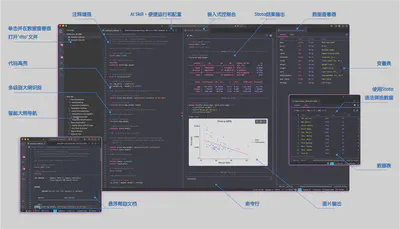
Stata All in One is a VS Code extension that provides Stata code execution, syntax highlighting, code completion, smart outlines, data viewing, graphical output, AI Skill integration, and more directly within VS Code.
More importantly, it works out of the box: all features are implemented natively within the extension, with no need to install or configure additional environments such as Python or Node.js.
The following image provides an overview of Stata All in One. Click it to view the full-size version:
Note: Some features require a valid
STATA.LICfile. Please use a licensed copy of Stata to access the complete feature set. You may contact Beijing UONE Information Technology Co., Ltd. (UONE Technology), an authorized partner of Stata Corp, LLC, to purchase a licensed copy or request a trial.
3. Get Started in Three Minutes
Installation is straightforward
If you use VS Code, search for Stata All in One in the Extensions Marketplace and click Install.
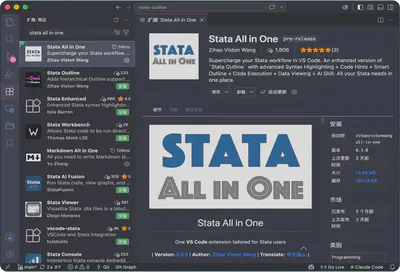
If you use Cursor, Trae, or another VS Code-based editor, you can download the .vsix file from the Open VSX Registry or GitHub using the links at the end of this article. Then select Install from VSIX in the editor’s Extensions panel.
Once installed, open any .do file and start working
The extension will attempt to detect your local Stata installation and complete the configuration automatically.
A small number of users may need to configure it manually by following the on-screen instructions. A video tutorial is available at https://pan.zihaowang.cn/share/stata-all-in-one/setup.mp4.
This may occur because of conflicts with other Stata-related extensions or the use of an unregistered portable installation of Stata.
The main execution shortcut is Ctrl/Cmd + D.
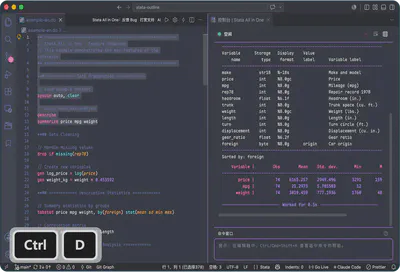
The extension automatically determines what to run based on the current cursor position:
- If the cursor is on a regular line of code, it runs the current line;
- If multiple lines are selected, it runs the selected code;
- If the cursor is on a section heading, it runs the entire section. The section-heading feature is introduced later in this article.
This is also one of the features I use most frequently. When writing empirical code for a research paper, I usually divide the do-file into sections such as data cleaning, variable construction, descriptive statistics, baseline regressions, and robustness checks. I can then run whichever section I need without manually selecting the entire block.
4. Write Code: More Efficiently
The first thing Stata All in One improves is the code-writing experience.
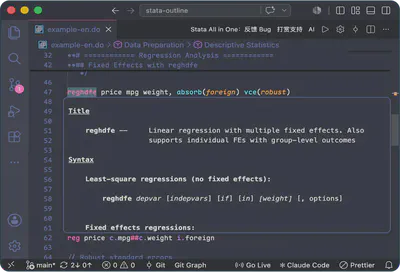
It provides syntax highlighting and code completion for .do files and supports custom highlighting for commonly used community-contributed commands. Commands such as reghdfe, ivreghdfe, gtools, winsor2, and outreg2 can all be added to your custom highlighting list.
After you have run your code at least once, the extension can also provide variable-name completion based on the current dataset. This is especially useful when working with datasets containing many variables: type the first few characters, and the relevant variable names will appear as suggestions directly in the editor.
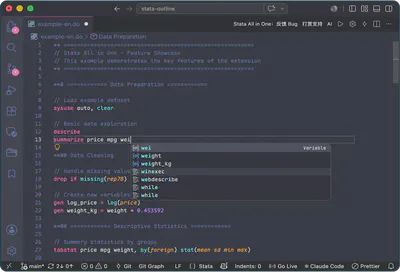
Hovering over certain Stata commands also displays brief help information.
5. Run Code: View Results Directly in VS Code
Traditionally, running Stata from VS Code involves sending code to an external Stata window. This approach is reliable and familiar to many users, so Stata All in One continues to support an external application mode.
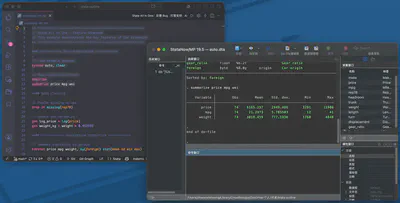
The extension also provides an embedded console mode, allowing Stata code to run inside VS Code and display its output directly in the editor.
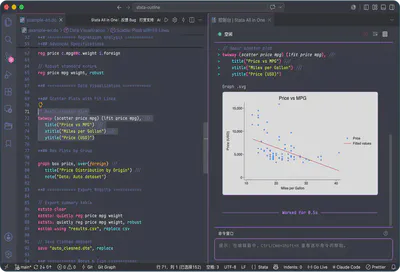
The console can display:
- Command output;
- Error messages;
- Command-line interactions;
- Graphical output;
- Execution time and progress information for selected commands.
For users who prefer to complete their work in a single window, this creates a more seamless experience: write code on one side, inspect results on the other, and view graphs directly in the console.
Of course, users who prefer Stata’s native interface can continue using the external application mode. The goal of this extension is not to replace everyone’s existing workflow, but to provide an additional option.
6. Manage Code: Organize It with a Smart Outline
As an empirical project develops, its do-files often become very long. Without a clear structure, it can be difficult to remember which section contains variable construction, baseline regressions, heterogeneity analysis, or other parts of the workflow.
Stata All in One can recognize specially formatted comment headings and automatically generate a document outline. For example, users can structure a do-file using the following comments:
**# 1. Data Cleaning
**## 1.1 Import Data
do something ...

**## 1.2 Merge Data
do something ...

**# 2. Baseline Regressions
**## 2.1 Main Regression
do something ...

**## 2.2 Add Fixed Effects
do something ...


**# And so on
The extension recognizes these headings and generates a hierarchical structure in VS Code’s Outline view. Even when a do-file contains hundreds or thousands of lines, users can navigate through it as easily as browsing the table of contents in a Word document.
Comment headings from **# to **###### are recognized, supporting up to six heading levels. The shortcuts Ctrl/Cmd + 1 through Ctrl/Cmd + 6 convert the selected text into the corresponding heading level, while Ctrl/Cmd + 0 restores it to a regular line of code.
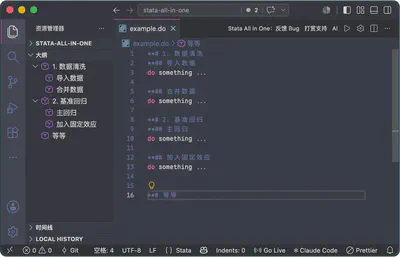
Multilevel numbering can also be enabled, allowing the outline to display structures such as 1.1 and 1.2.1. This is particularly useful for replication packages, course materials, and reusable project templates.
7. View Data: Without Constantly Switching Windows
In many cases, you do not need to edit a dataset formally—you simply want to inspect a .dta file quickly.
Stata All in One includes a data viewer that allows you to open .dta files directly within VS Code. It displays information such as variable names, variable labels, and variable types, and loads rows and columns on demand.
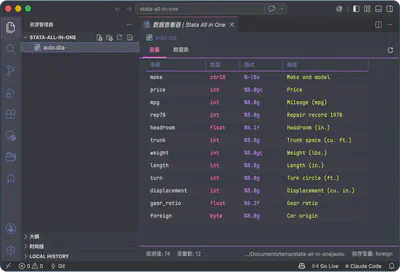
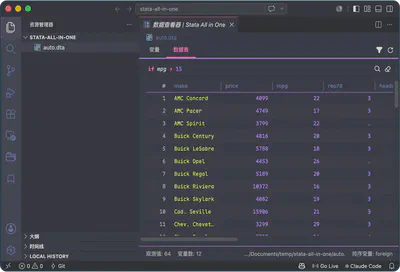
After running code, you can also inspect the current dataset from the console panel. This reduces the need to switch repeatedly between Stata, the Data Editor, and VS Code.
For most situations where you simply need to “take a quick look,” this feature is highly convenient.
8. Code Comfort: Separators, Comments, and Safe Renaming
In addition to running code and viewing data, the extension includes several small features designed to make everyday coding more convenient.
-
Insert section separators with a single shortcut to make do-files easier to read:
**# ==================================================
**#                  Baseline Regressions
**# ==================================================
Use
Ctrl/Cmd + [symbol]to insert different separators:Ctrl/Cmd + -for hyphens |Ctrl/Cmd + =for equals signs |Ctrl/Cmd + Shift + 8for asterisks -
Use
Ctrl/Cmd + /to comment or uncomment code quickly. This is useful when documenting code or temporarily disabling selected lines. -
The extension also provides a safe rename mode. Select a variable and press
F2to rename it throughout the current document. The extension checks whether the new name follows Stata’s naming rules and attempts to avoid mistakenly modifying Stata commands or commonly used options. -
Use
Ctrl/Cmd + Enterto insert a new line while automatically preserving the current indentation style.
These features may not appear particularly dramatic, but they address small inconveniences that occur repeatedly when writing empirical code. Many more productivity features are available for you to explore.
9. Easy Sharing: Present Your Process and Results Elegantly
After completing data processing or empirical analysis, we often need to share the process and results with advisors, collaborators, or classmates. The usual options—screenshots or exported Stata .log files—are less than ideal: screenshots struggle to present a long execution history in full, while log files are not particularly pleasant to read or format.
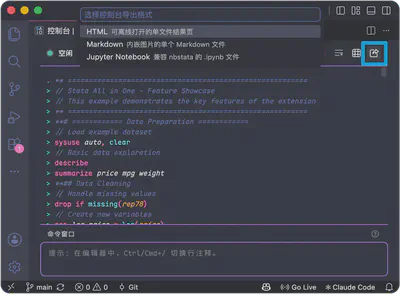
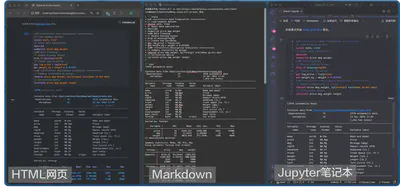
Stata All in One lets you export code, output, and graphs from the console with a single click as an HTML webpage, Markdown document, or Jupyter Notebook compatible with nbstata. Click the Share button in the upper-right corner of the console to create a results file for collaboration, teaching, or research replication.
10. AI Integration: Let AI Run Stata, Not Just Read Code
Many researchers have begun using AI to assist with coding. For Stata users, however, one common limitation remains: AI can revise code and explain error messages, but it often cannot run Stata directly to verify whether its suggestions actually work.
Stata All in One provides a Stata AI Skill workflow that enables AI coding tools such as Claude Code, Cursor, Codex, OpenCode, and OpenClaw to run Stata code through a local service.
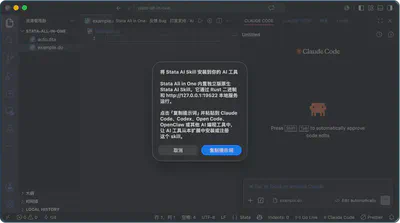
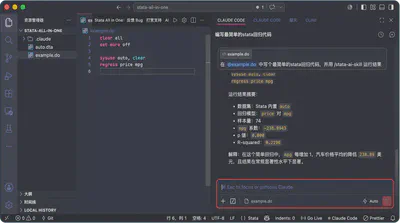
The Stata AI Skill works out of the box and natively supports both Windows and macOS. Once installed, AI agents can continue using the Skill to run Stata even if Stata All in One is later uninstalled. Unlike some Stata MCP implementations or related Skills that depend on Python environments or additional middleware, the Stata AI Skill uses a native implementation, making it easier to configure and more reliable to invoke.
This feature is still being actively improved and is currently best suited to users who enjoy experimenting with new tools. Potential use cases include:
- Asking AI to check whether a section of a do-file can run successfully;
- Asking AI to diagnose problems based on Stata error messages;
- Using AI to assist with repetitive data-processing tasks;
- Allowing AI to test selected Stata commands in the local environment.
The Stata AI Skill also includes support for the community command lianxh, allowing AI agents to search the Lianxh platform for Stata articles, tutorials, and examples. When an agent’s built-in knowledge or locally available materials are insufficient, it can use the lianxh command to retrieve supplementary information.
A standalone version of the Stata AI Skill is also available. Simply send the following prompt to your AI agent, and it can complete the installation and configuration automatically:
Please visit https://raw.giteeusercontent.com/ZihaoVistonWang/Stata-AI-Skill/raw/main/guide/installation.md and install and configure the Stata AI Skill.
⚠️ AI cannot replace a researcher’s own judgment. Regression specifications, variable definitions, and other substantive research decisions must still be reviewed carefully by the researcher. This feature is better understood as an assisted debugging tool rather than an automated research tool.
11. Workflow: A Simple Example
Suppose you are working on the empirical section of a research paper. A typical workflow might look like this:
- Open the project folder in VS Code;
- Divide the do-file into modules using
**#headings; - Open the
.dtafile to inspect the data and variables; - Write code with syntax highlighting, variable completion, and hover help;
- Use
Ctrl/Cmd + Dto run the current line, selected code, or an entire section; - Review results and graphs in the embedded console;
- Open the data viewer to inspect variables and observations;
- When necessary, ask AI to inspect the code or help diagnose errors;
- Finally, share the execution process and results with others if needed.
This approach makes the project structure clearer, the execution process more convenient, and the code easier to organize into a reproducible research workflow.
12. Closing Thoughts
The motivation behind this extension is simple: to help Stata users spend less time on repetitive configuration and window switching, and more time working comfortably and efficiently.
Stata is an essential and highly reliable tool for many empirical researchers, while VS Code provides a modern environment for code editing and project management. Stata All in One aims to build a small bridge between the two.
If you use Stata regularly and are interested in trying a more integrated working environment, you are warmly invited to install the extension and give it a try.
Feedback and suggestions are always welcome and will help make the extension better. This project is still under active development. To report bugs or suggest improvements, please contact hi@zihaowang.cn.
This article provides only a brief introduction to Stata All in One. For more detailed documentation and user guides, please visit: https://gitee.com/ZihaoVistonWang/stata-all-in-one
Related Links
- VS Code Marketplace — Extension page: https://marketplace.visualstudio.com/items?itemName=ZihaoVistonWang.stata-all-in-one
- Open VSX Registry — Extension page: https://open-vsx.org/extension/ZihaoVistonWang/stata-all-in-one
- GitHub — Source code repository for international users: https://github.com/ZihaoVistonWang/stata-all-in-one
- Gitee — Source code repository for users in China: https://gitee.com/ZihaoVistonWang/stata-all-in-one
- Author’s homepage: https://zihaowang.cn
- Bug reports and feedback: hi@zihaowang.cn